Connect ChatGPT or Claude
Then you can ask your AI assistant about your recipes. If you like, it can also save new recipes straight to Ricotta. It takes about two minutes and is easiest in a browser on a computer.
Your address
You will paste this address into Claude or ChatGPT. In the app you also find it under Settings › “ChatGPT and Claude”.
Continue with Claude or ChatGPT.
Claude
Open claude.ai and go to “Customize” › “Connectors”.
“Customize” is in the sidebar on the left.Click “+ Add” at the top right, then “Add custom connector”.
Enter “Ricotta” as the name, paste the address and click “Continue”.
Click “Add”.
Claude detects the sign-in by itself. You do not need to change anything here.Click “Connect”.
The Ricotta page opens. Continue below at Allow.
Claude’s free plan allows one custom connector.
ChatGPT
Open chatgpt.com and click “Plugins” on the left.
Click “Add” at the top right, then “Add custom MCP server”.
Enter “Ricotta” as the name and paste the address under “Connection”.
Leave “Authentication” on “OAuth”.Tick “I understand and want to continue” and click “Create as a plugin”.
Click “Connect Ricotta”.
The Ricotta page opens.
Allow
Click “Sign in with Apple”.
Use the same Apple Account as in the app.Tick what you want to allow.
Reading is always included. Saving new recipes and editing existing ones are separate choices.Click “Allow connection”.
You are then back in Claude or ChatGPT.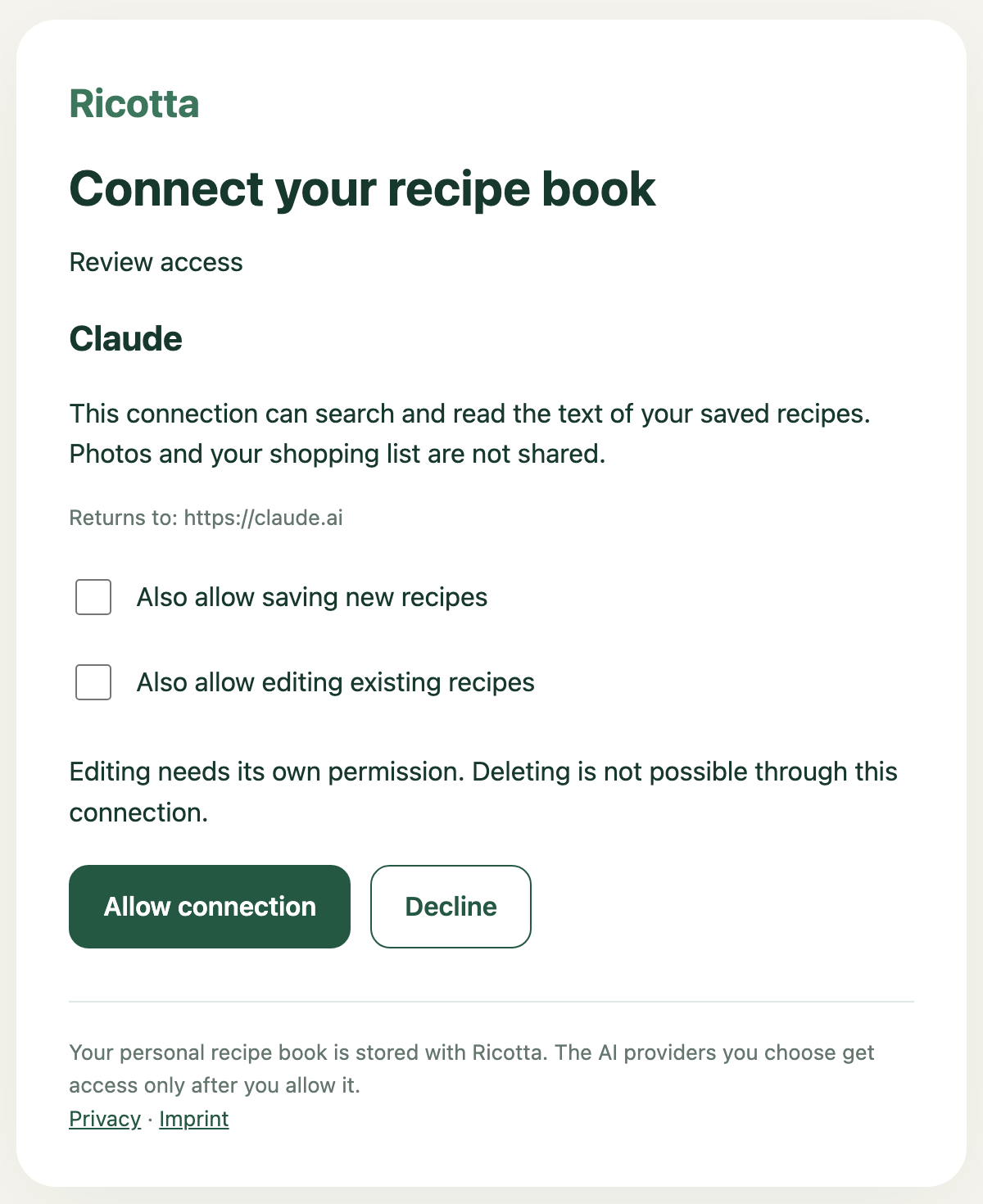
Try it
Ask, for example: “Which recipes with lentils do I have?” or “Save this recipe to Ricotta” with a link. In ChatGPT, type “@Ricotta” in the chat.
End the connection
At connect.getricotta.app you see every connection and can revoke each one. The assistant then has no access any more.